00 // Introduction
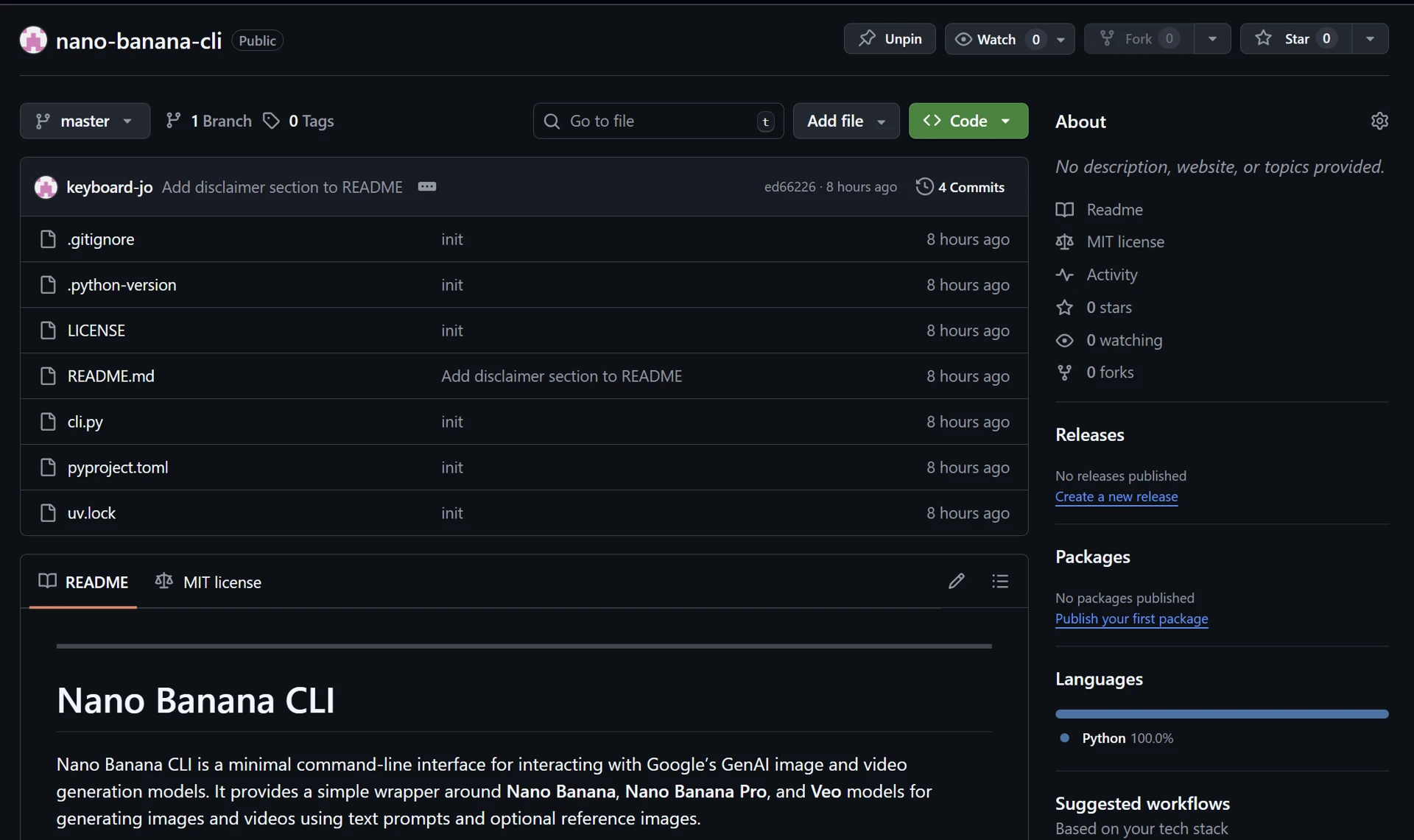
To create AI-generated images and videos for my first spec project and AI character creation, I mainly relied on my own software. This article introduces nano-banana-cli, an unofficial CLI wrapper for the Gemini API. In short, it allows you to generate images using Nano Banana and videos using Veo directly from the command line.
GitHub - keyboard-jo/nano-banana-cli
Contribute to keyboard-jo/nano-banana-cli development by creating an account on GitHub.
There was no particular reason I chose to build a CLI wrapper. I simply thought it would be a cool and simple project—something lightweight that could also be reused in other software projects if needed. By providing your GEMINI_API_KEY, you can access the full capabilities of the Gemini API through this CLI.
01 // Features
The CLI has two main functions: image generation and video generation.
Image Parameters // Data_Sheet
Video Parameters // Data_Sheet
Not all parameters are supported by every model. Each model requires and supports a specific set of parameters by default. Please refer to this image documentation and video documentation.
02 // Installation
To install the CLI, you will need Git and Python installed on your system.
First, clone the repository:
git clone https://github.com/yourusername/nano-banana-cli.git
cd nano-banana-cliCreate and activate a virtual environment:
python -m venv .venv
source .venv/bin/activate  # macOS / Linux
.venvScriptsactivate # WindowsInstall the dependencies:
pip install -r requirements.txtCreate .env file in project root:
GEMINI_API_KEY=your_api_key_here03 // Usage
Image generation
The following command generates a 2K image using Nano Banana Pro with two reference images:
python cli.py image --prompt "A fashion photoshoot of the same person" --model gemini-3-pro-image-preview --image-paths face_ref.png body_ref.png --resolution 2K --output fashion.pngVideo generation
This command generates a 6-second, 1080p, 16:9 video using Veo 3.1 Fast (the default model):
python cli.py video --prompt "Slow-motion ocean waves crashing against rocks" --resolution 1080p --aspect-ratio 16:9 --duration_seconds 6 --output waves.mp4Using start and end frames
You can guide video generation using a starting and ending frame:
python cli.py video --prompt "A person walking through a futuristic city" --first-frame start.png --last-frame end.png --output city_walk.mp4Using reference images
Reference images can be used to maintain character or style consistency:
python cli.py video --prompt "A cinematic fashion walk with realistic lighting" --reference character.png outfit.png --model veo-3.1-fast-generate-preview --output fashion_walk.mp4Full documentation and additional examples are available in the GitHub repository.