00 // Concept & The Spec Project
The real reason for this spec project was to see if I could pull off a hybrid workflow—integrating generative AI into a traditional design process. I’ve always had an interest in graphic design and 3D modeling, but I studied Computer Science in university. I got hooked by posts on Instagram showing how realistically you can generate characters using Nano Banana Pro, so I created Polaris.
Why a beer company exactly? Honestly, I just thought it looked and sounded cool. The first step was picking an aesthetic. I’m drawn to the minimalist, Muji-style, and International Typographic Style (which you can see in the design of this website). For the logo, I used Seedream 4.0 because I didn’t want to get bogged down in the early stages. The black-and-white polar bear logo fits the minimalist look perfectly. After the logo was set, I was tempted to jump straight into Blender, but I forced myself to wait and design the flat beer can wrap in Affinity first.
01 // Blender Modeling
Moving into Blender, I followed this tutorial by Pete Design to build the can. I used a reference image to model the shape from a simple circle mesh. The tutorial was solid, so I didn’t hit any major roadblocks there. For the texturing, since the can is just a cylinder, the UV unwrapping was fairly easy. I set up a backdrop and a looped lighting rig to get a clean, neutral “reference shot” of the can.
02 // The Inpainting Struggle
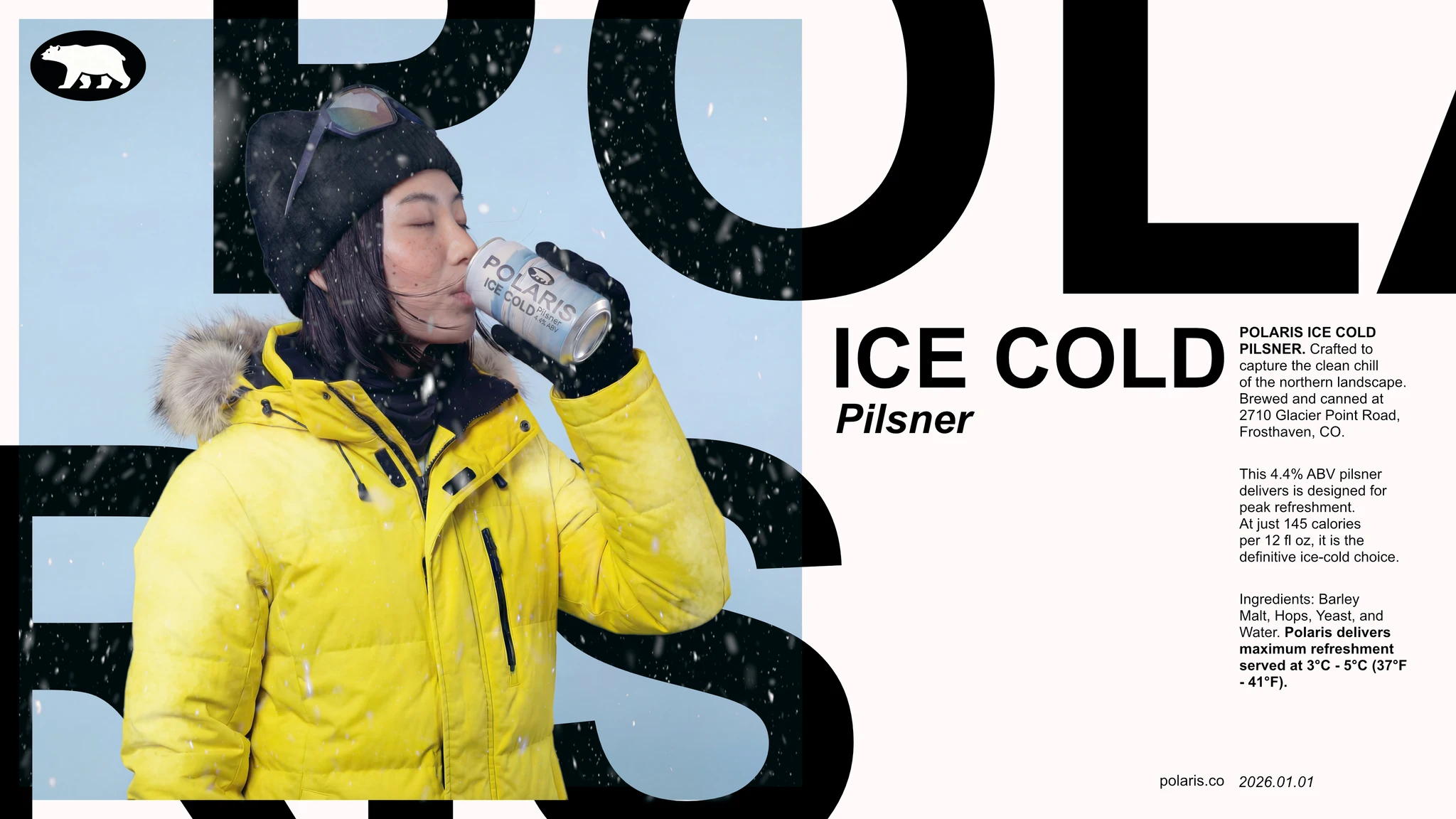
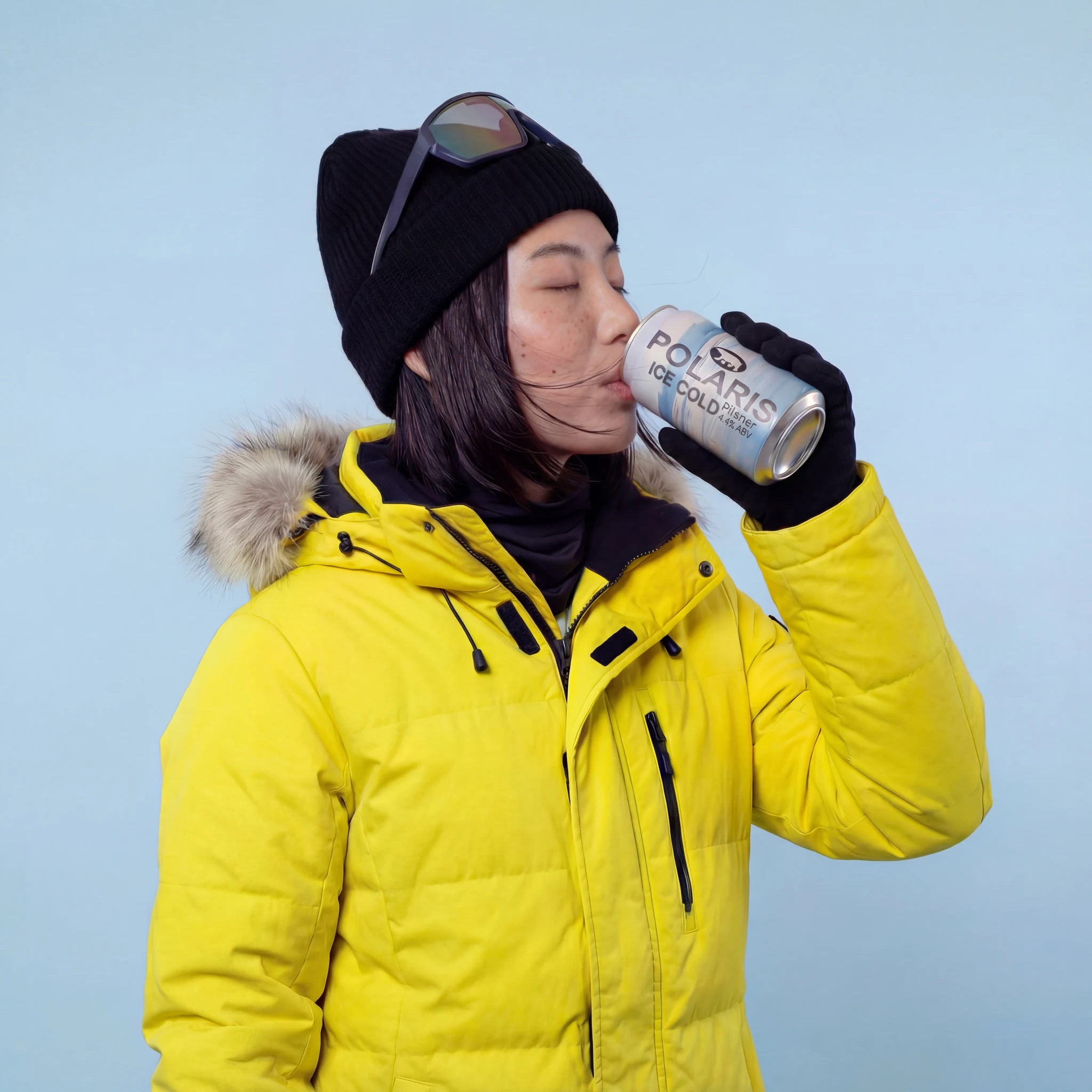
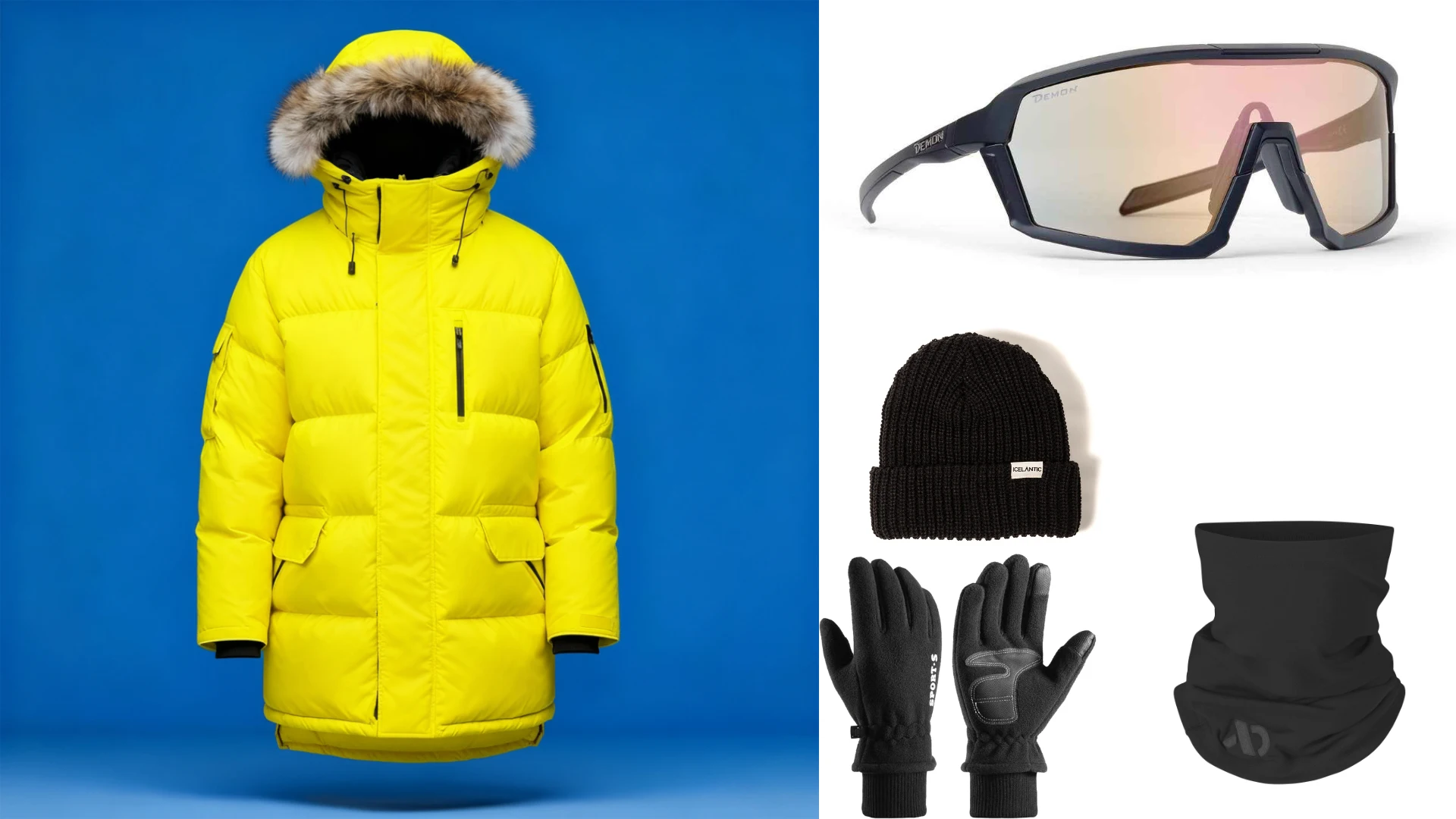
Once I had the can rendered, I moved on to the character. I started by creating an outfit board to keep the look consistent. I used that to generate a 3/4 shot of my character in a neutral pose to serve as a master reference.
Then came the “Hero Shot” for the first poster: the character drinking from the can. This was much harder than I anticipated. The first generations were okay, but I struggled to get the pose right—getting the face, the hands, the zoom, and the outfit details to align was a battle. I learned to work in stages: first the pose, then the zoom, then the details.
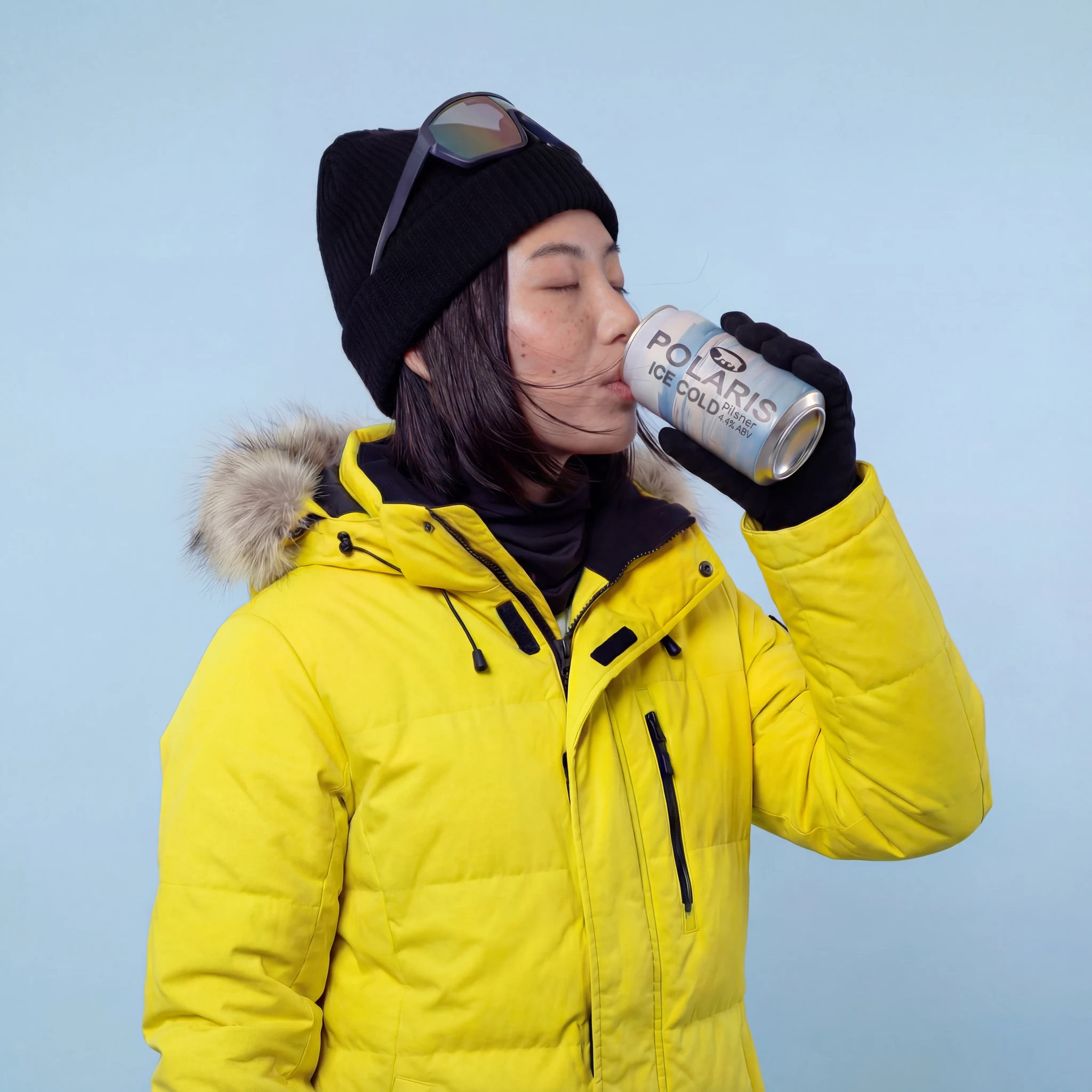
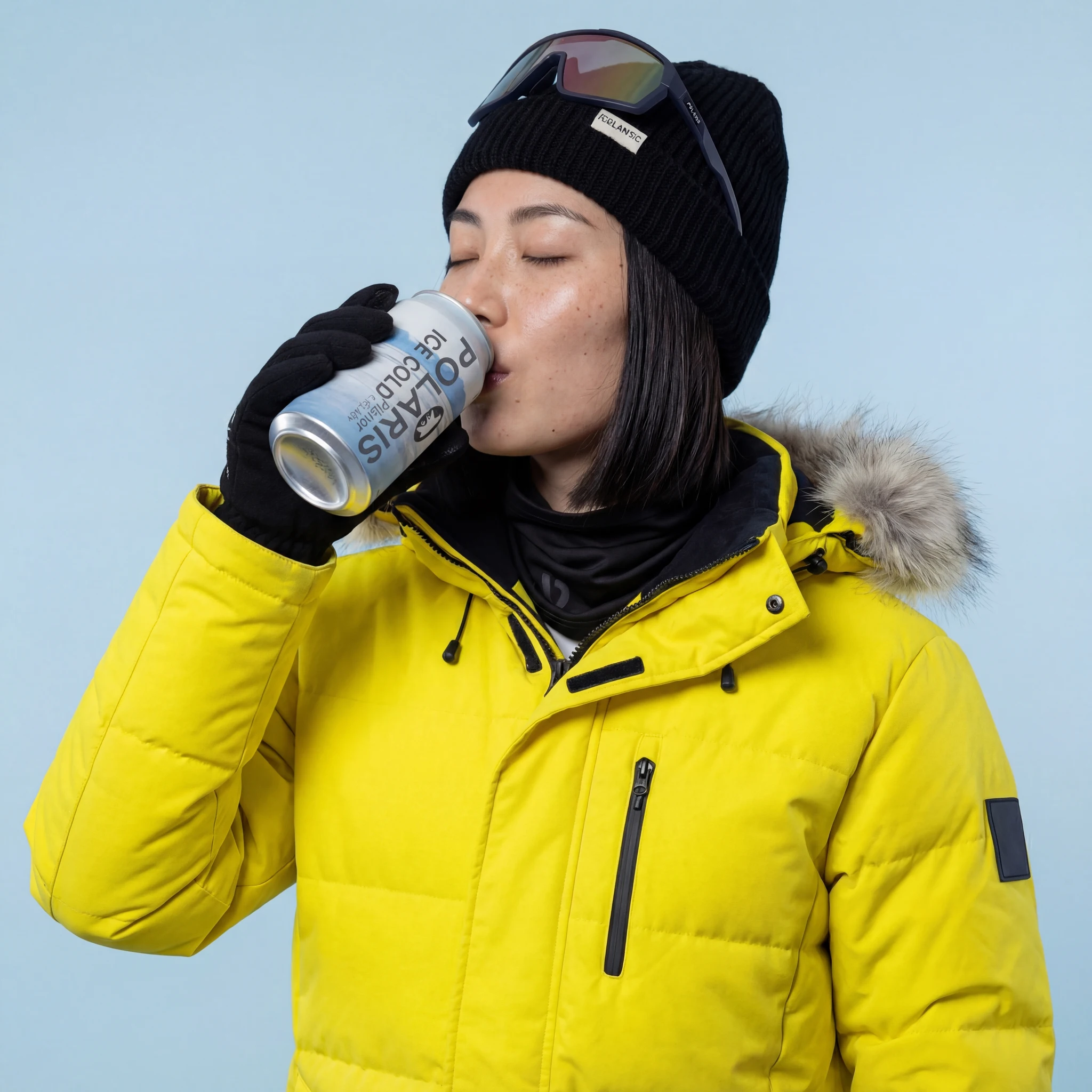
The first two steps were mostly prompt engineering, but the final details were an inpainting mess. I followed a “Mask Banana” methodology I saw online—essentially circling a focus area and prompting it specifically. I realized that while removing details with this method is easy, fixing or regenerating them is hard, especially with text. The text on the can, the sunglasses, and the beanie logo were all distorted and had to be inpainted out one by one.
For the final poster layout, I chose a 16:9 aspect ratio. It’s unusual for social media ads, but I find it more interesting—it feels more like a cinematic landing page or a two-page magazine spread. I laid out the character and the large typography first, then added the smaller details inspired by classic Swiss posters. To finish it off, I added layered snow and color grading in Affinity to give it that “cold” atmosphere.
03 // Getting Smarter
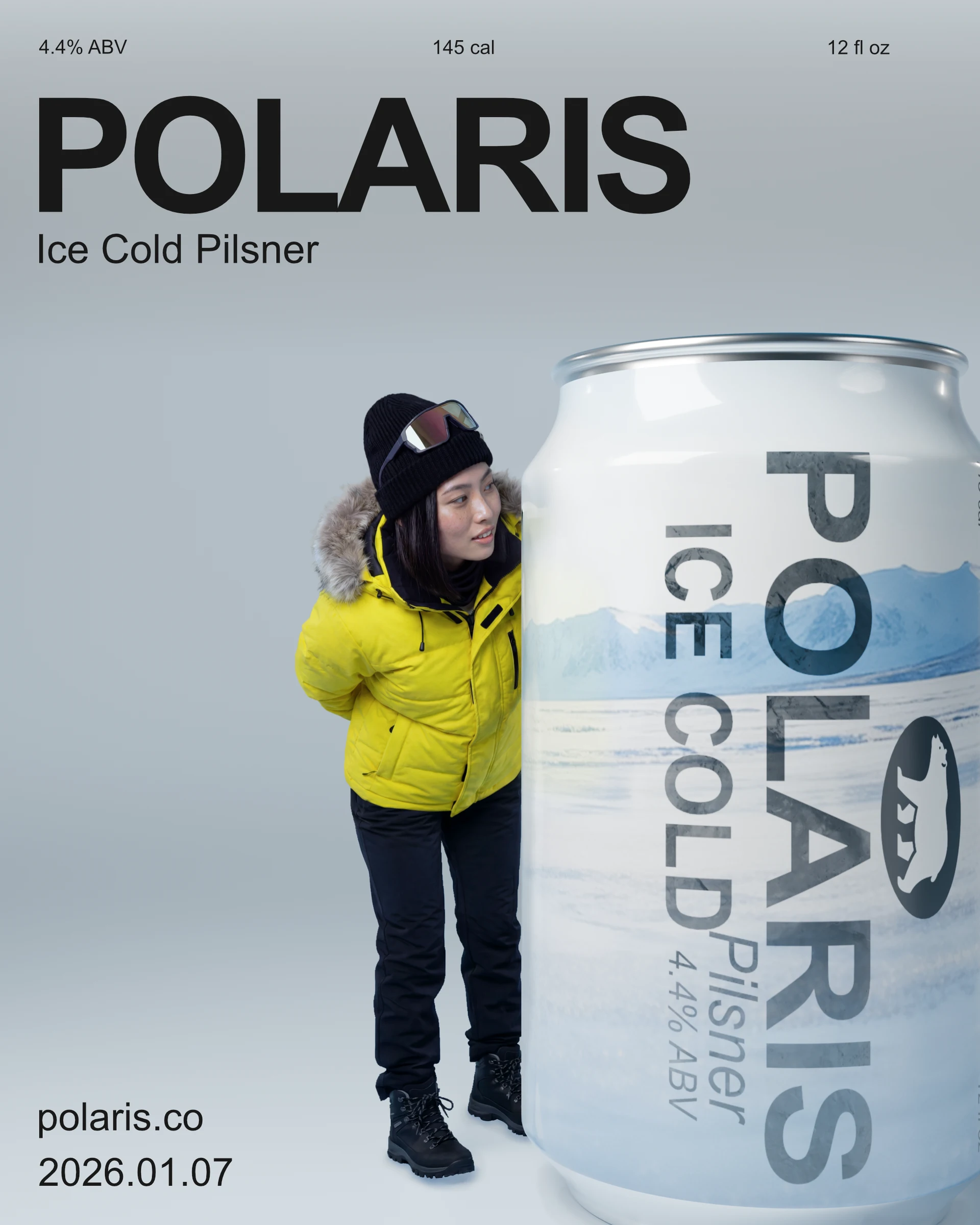
For the second poster, I wanted something more “subject-oriented.” While the first poster was heavy on typography, this one needed to start with the beer can. I made it large and accurate by using an actual Blender render instead of an AI-generated can—this saved me the hassle of fixing distorted labels.
I experimented with Geometry Nodes from this tutorial to add condensation droplets, but it didn’t look right. I think my lighting and material settings made the droplets look “off,” so I scrapped them to keep the design clean.
The character interaction here was another challenge. I thought about having the character resting on top of the can or peeking around the sides, but the perspective was too difficult to nail. I settled on the character walking and looking at the can. I realized mid-way that my lighting didn’t match: the can was lit from the right, and the character from the left. I had to redo the Blender lighting and actually added an armature (a basic 3D skeleton) in the character’s pose to cast realistic “contact shadows” onto the can and floor. Finally, I stripped away all unnecessary info to keep the grid system as minimal as possible.
04 // Video Production
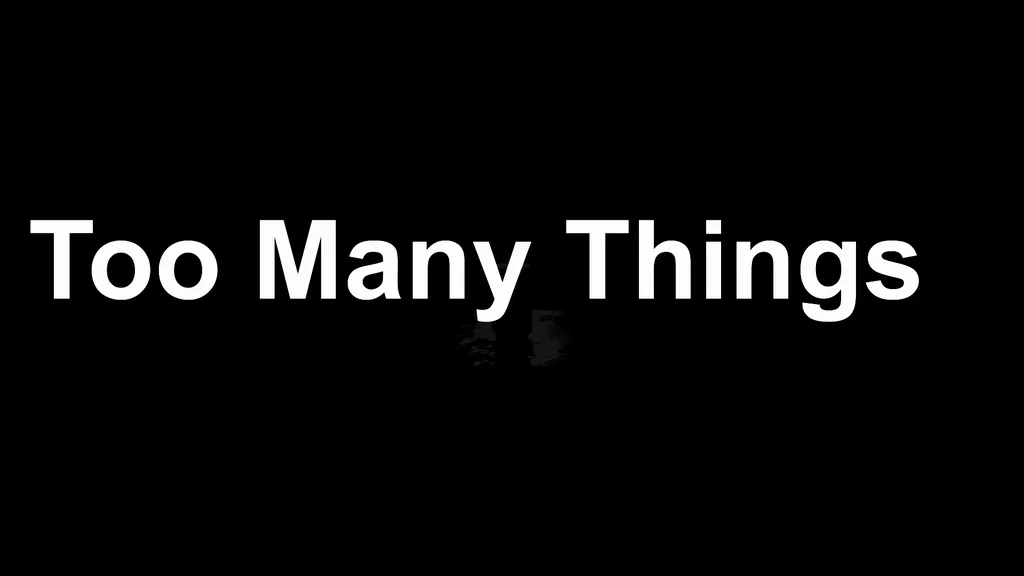
Video is my least experienced area, so I didn’t have a rigid vision. I wanted to combine a Blender render with an AI video. The concept: a beer can sitting on an ice block, hidden by haze. As the camera pans in, the haze clears and a light reveals the can—moving from complexity to clarity. I decided to add back the condensation effect but follow from this tutorial instead because it has animations.
Rendering 96 frames at 24fps on my laptop (Intel GPU) took about 5 hours. I brought the sequence into DaVinci Resolve and took the final frame into Google Veo 3.1 to generate the “hand grab.” This was complicated. Veo likes to add extra, unnecessary movements to pad the 8-second duration. It was wonky, but I fixed it in post using smooth transitions and masking.
Render Parameters // Data_Sheet
Because I’m using the free version of DaVinci, I had to manually mask and track the can as the hand moves. The hardest part was the audio in the Fairlight tab. Layering ambient noise and making the “clink” and “startup” sounds feel coherent was a massive learning curve. I finished with a cold color grade—lowering the temperature, bringing up the shadows, and pulling down the midtones.
05 // Retrospective & Lessons Learned
Mask Banana Inpainting Inconsistency
From my experience, inpainting using the Mask Banana methodology is fairly consistent when removing a single detail from an image. However, it becomes much less reliable when removing or fixing multiple details at once. For example, circling multiple objects and asking the model to remove or modify specific parts in a certain order often produces inconsistent results.
What works best for me is handling each removal or modification one step at a time. This approach gives more accurate and predictable outcomes. Overall, it’s a solid methodology, but it definitely has limitations.
Other alternatives might include approaches like Higgsfield inpainting, where the area is highlighted instead of fully circled. I’ve also tried using a smaller cutout once—cutting a 1K section from a 4K image and asking Nano Banana to modify it while keeping visual consistency. The result wasn’t a perfectly aligned modification, and there were some offsets in important features. However, those issues can usually be blended out in Affinity.
The Tiling/Outpainting Hack:
To keep highly detailed facial features from the reference image, the generated image should be in 4K and framed as close as possible. A close-up shot works best for preserving facial detail—zooming out usually reduces the amount of detail in the face.
To minimize detail loss, tiling can be a good approach. For example, in my second poster, I generated two images for the AI character: one for the top half and one for the bottom half. If I had generated a full-body shot in a single image, the facial details would definitely be reduced. This approach can be considered outpainting or tiling—starting from a reference image and generating adjacent sets of tiles.
Similar to the cutout method, the result won’t be perfectly accurate, so blending in Affinity is still needed.
Blender Shadow Simulation
Using an armature in a similar pose to the AI character helps add contact shadows to the surrounding environment. For example, the armature helps cast shadows onto the beer can and the floor in the second poster. Even though the shadow size might not be fully accurate, it’s a good starting point for understanding how the light would interact if a subject were actually there.
Blender Hardware Workarounds
This is a problem I ran into while rendering in Blender on limited hardware. Taking around 5 hours to render just 4 seconds is way too long for my preferences. I’ve already done some optimizations to speed up render times, but it still wasn’t enough.
One idea I saw on this video was to lower the resolution and render fewer frames. The suggestion was then to use AI upscaling in DaVinci Resolve and essentially slow the video down. Slowing things down is fine for less dynamic animations. Another possible solution is using AI frame interpolation, which can help smooth the motion as well.
06 // The Final Result